Follow the instructions in the tabs to install Office on an iPhone. After you follow these steps, your work files created in Office apps will be protected by Microsoft 365 for business.
The example is for Outlook, but applies for any other Office apps you want to install also.
If you found this video helpful, check out the complete training series for small businesses and those new to Microsoft 365.
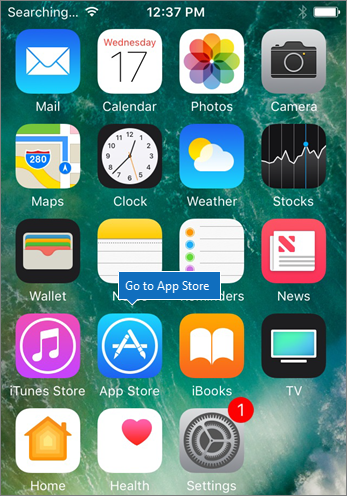
Go to App store, and in the search field type in Microsoft Outlook.
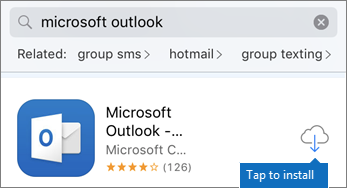
Tap the cloud icon to install Outlook.
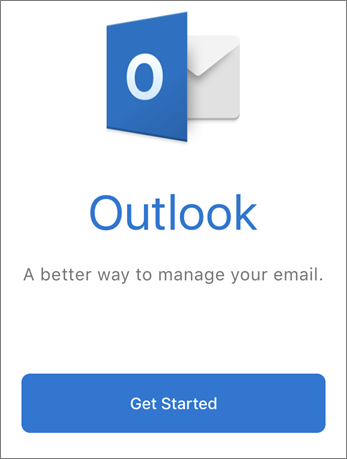
When the installation is done, tap the Open button to open Outlook and then tap Get Started.
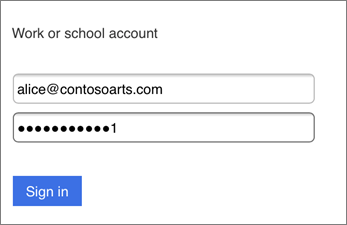
Enter your work email address on the Add Email Account screen > Add Account, and then enter your Microsoft 365 for business credentials that you received in the text message > Sign in.